





|
||||
|
|
|
|
|

|
||||||||||||||||||||||||||||||||||||||||







|
||||||||||||||||||||||||||||||||||||||||
|
||||||||||||||||||||||||||||||||||||||||
|
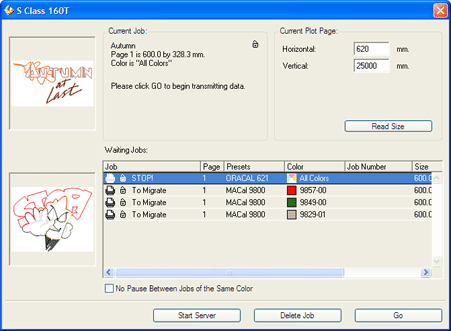 |
Support of Multiple Plotters inside MacSign through Different Kinds of Connection The application maintains a plot queue for each plotter you have created and allows to send jobs directly to your plotters at the same time. The Plotter menu contains commands for creating and managing the application’s plotters. You can put jobs in the plot queue only to send them to the plotter at a later time, keep jobs after plotting for future use, remove jobs from the waiting list, and change the order of the jobs in the waiting list. |
Enhanced Tiling
The tiling has been improved with more options. The Page tool allows you to create or remove pages by dragging the tile lines. All tiling settings are saved in the document instead of the application.
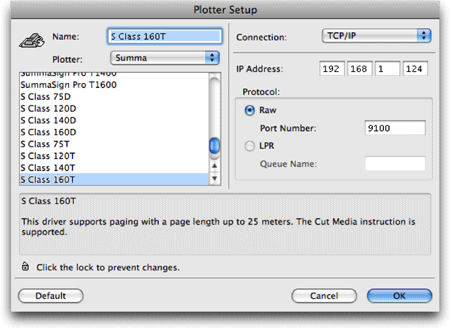 |
TCP/IP Support Support of the Raw TCP/IP printing protocol to communicate with the cutter. |
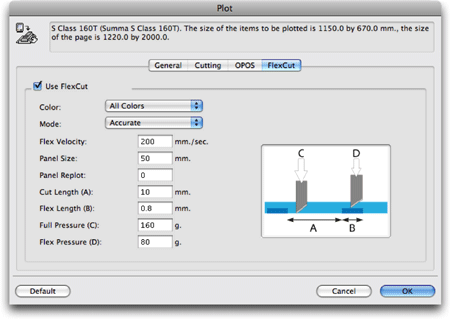 |
Summa's FlexCut Feature Support The Summa's FlexCut panel in the Plot commands dialog box allows you to setup and control the media cutting through process on the cutter directly from MacSign for added user-friendly operation. Cutting media completely through on a drum-plotter is not an easy thing to do. It should be avoided that cut pieces fall out while proceeding the job because this causes media crashes. In order to avoid these crashes Summa implemented the FlexCut feature: an interrupted cutting line ensures the media's stability by means of small media "bridges". When the job is finished the cut images can then simply be torn out. |
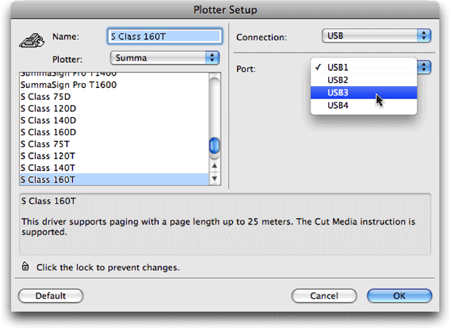 |
Multiple Summa's Cutters via USB Support of multiple (up to four) Summa cutters on a single computer through USB connection. |
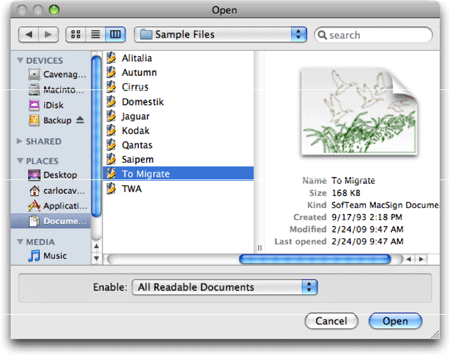 |
Support of the Apple's Quick Look Technology Quick Look is a technology introduced in Mac OS X version 10.5 that enables client applications, such as Open dialogs and the Finder, to display thumbnail images and full-size previews of documents. MacSign includes a Quick Look generator that converts a MacSign document from its native format into a format that Quick Look can display to users. |
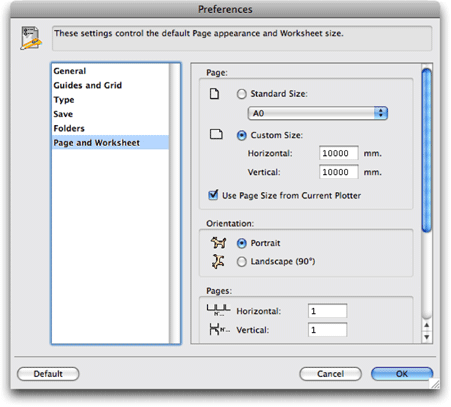 |
The Page and Worksheet pane in the Preferences dialog box This pane allows you to set the default Plot Page Setup and worksheet size values used when you create a new document. |
The Save All command in the File menu
It saves changes to all open documents.
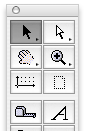 |
New selection tools: Selection, Direct Selection, Lasso Selection, and Direct Lasso Selection tools The Selection tool lets you select entire elements by clicking on them or by dragging a rectangle over them. The Direct Selection tool lets you select individual anchor points, path segments, or entire elements by clicking on them or by dragging a rectangle over them. The Lasso Selection tool lets you select entire elements by dragging an irregular shape around all or part of the elements. The Direct Lasso Selection tool lets you select elements, anchor points, or path segments by dragging an irregular shape around all or part of the elements. |
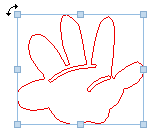 |
Bounding Box Editing When you select one or more elements with the Selection or the Lasso Selection tool, a bounding box displays around them. The bounding box lets you scale, rotate, reflect, and shear elements easily by dragging an handle. |
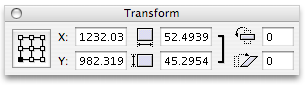 |
The Transform Palette The new Transform palette displays information about the location and size of current selection. By typing new values, you can move, scale, rotate, reflect and shear the selected elements, change the transformation origin point and keep the elements' proportions. |
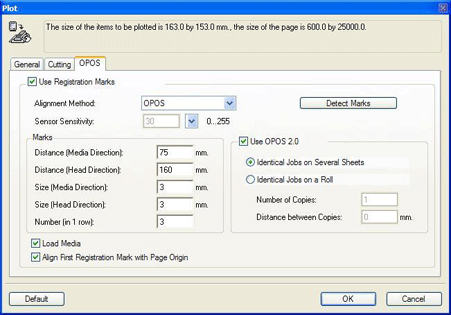 |
Automatic Detection of Optical Alignment Methods’ Registration Marks and Origin Point Alignment The application is now able to scan the document content to try to detect the registration marks, and to automatically align the origin registration mark with the origin of the cutter page in the MacSign document. This capability is currently only supported on Summa OPOS and Graphtec ARMS technologies. |
The "Bar Code Server" Mode
In this mode multiple, different "contour cutting" jobs can be processed one after each other without operator intervention. The "bar code workflow" capability is currently only supported on Summa cutters.
Support of Graphtec's ARMS (Advanced Registration Mark Sensing)
This allow to setup and control the registration mark reading unit on Graphtec cutters directly from MacSign for added user-friendly operation.
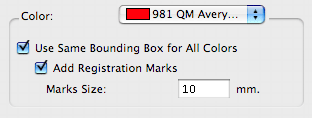 |
Advanced Color Separation A design can be cut as a single job containing all colors, or as a separate job for each color using the same bounding box for all colors, or as a separate job for each color using the appropriate bounding box for each color. Choosing the second option, you can also add small squares to the corner of each job to aid in positioning each piece. |
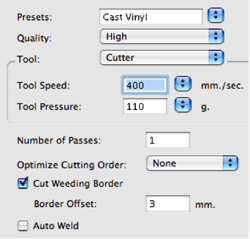 |
Number of Cutting Passes You can set how many times the knife cuts each path on your sign. Most media can be cut in one pass, but your cutter may need to make several passes over ticker media before cutting through it. |
Auto Weld
The Auto Weld option automatically removes intersections of overlapping elements of the same color during the cutting.
Cutting Presets
This new feature lets you create presets (i.e., "snapshots" of all your chosen cutting settings) of the settings of the Cutting pane. In future cutting jobs, you can recall these settings by selecting them from the Presets pop-up menu.
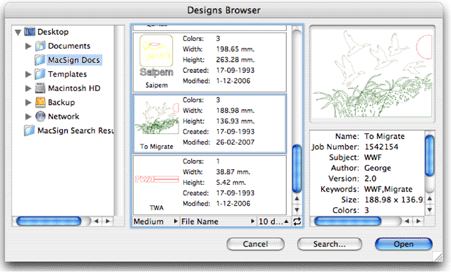 |
The Designs Browser The new Designs Browser window makes it easy to view, search, select, and open multiple designs. The Designs Browser window shows multiple designs thumbnails together with important information such as size, number of colors, and more. You can display a preview and a comprehensive design information. You can search for designs by keywords, job number, number of colors, and other criteria. |
New Pre-set Vinyls Color Charts
MacSign now includes a wider range of pre-set vinyls color charts from the major manufacturers: 3M, APA, ARLON, Avery, GMI, GRAFITYPE, HEXIS, KEMICA, MACtac, Multi-fix, NESCHEN, ORAFOL, and SISER.
Enhanced Vinyls Palette
Each vinyl contains the vinyl line and it is possible to selectively import vinyls from tab-delimited text files and existing MacSign vinyls libraries: this allows to easily create own vinyls color charts from different sources and manufacturers. The Find command has been re-written with more options. A palette options command allows to set how the Vinyls palette works.
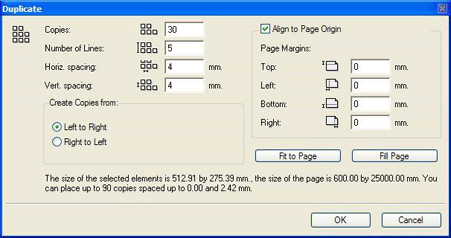 |
Improved Duplicate Command New Duplicate command automatically fits or fills copies to cutter page for better media savings. |
New Preferences
The new Preferences dialog box has been organized in multiple panes and it lets you specify more options regarding how you want MacSign to work, including those for tools, guides, units, and display.
Auto Save
MacSign allows you to periodically save open documents. You can also specify the time period between saves.
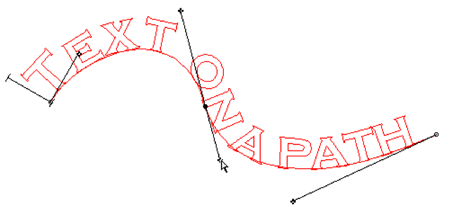 |
Text on a Path & Envelopes on Text Elements You can flow text created with the Type tool to freeform paths or basic shapes using the Text on Path sub-menu in the Element menu. Text can appear along curves, around circles, or along vertical or diagonal lines. You can apply envelope distortions to text elements created with the Type tool, without convert them into outlines. |
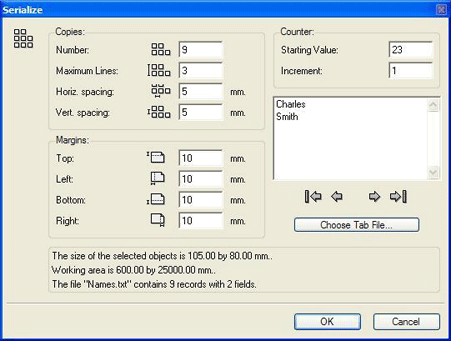 |
The Serialize Command The Serialize command makes easy to create personalized items or any other serialized graphics. Combine text layouts, graphics, and external text file, add the Serialize ability to generate a series of numbers and suddenly what used to take an entire day happens in seconds. It is useful to produce large run generic designs that contains slight text variations. |
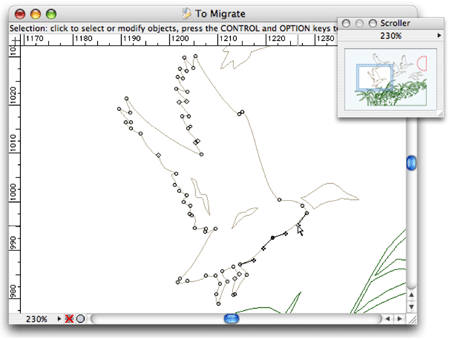 |
The Scroller Palette The Scroller palette helps you to quickly view different areas of an artwork, locate the area you are viewing within the artwork, and change the magnification of the artwork. When you are working on complex artwork documents, you often want to move on key areas without having to scroll or wait for the screen to redraw several times. The Scroller palette makes it a breeze for you to instantly move on any area of your artwork and see your edits in a larger context. With the Scroller palette, you can even specify a precise zoom of up to 10000 percent. |
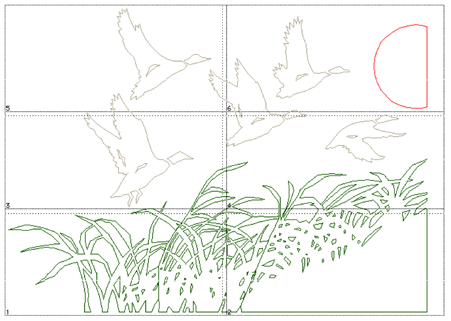 |
The Tiling Feature The tiling feature separates a design into two or more pieces, with user-specified overlaps, and allows you to cut designs larger than cutter width or break a design into a specific sizes for mounting purposes. You can adjust the size of each piece to create tiles of varying size. The overlap between connecting tiles adds a repeated portion of the artwork between the tiles and makes it easier to properly align the tiles during the mounting. |
Support for CorelDRAW Format
MacSign supports the Corel Presentation Exchange (CMX) format, the exchange format used by Corel suite of applications. The Import CMX File command in the File menu allows you to import directly any CMX file created by CorelDRAW or any CMX-aware application. Moreover, you can copy any complex Bézier-based artwork from CorelDRAW and paste it into MacSign; and, on Mac OS X, you can drag elements in the CorelDRAW window and drop them in the MacSign window!
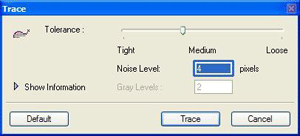 |
Trace Command Use it to create automatically paths that traces the outlines of scanned images imported as template inside MacSign. The Trace command is designed to convert black-and-white (one-bit-per-pixel) images as well as grayscale or indexed color (multiple-bits-per-pixel, up to 8-bits-per-pixel, i.e., 256 different gray levels or colors) images. |
Layers Palette
Use multiple layers to overlay graphics and text, for greater design freedom and control. The Layers palette lets you create multiple levels of design on separate, overlapping layers in the same document. You can create and modify elements on any layer without affecting design on other layers. You can display, lock, and reorder layers as distinct units.
Multiple-levels of Undo and Redo
Take advantage of multiple levels of undo/redo for correcting mistakes and changing your mind.
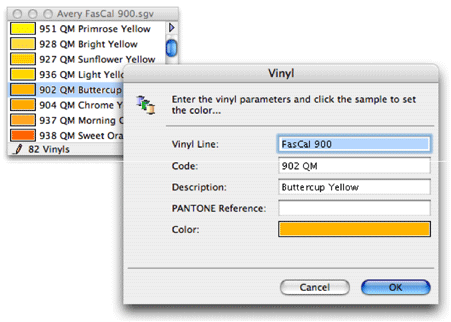 |
Colors Palette Use the intuitive Colors palette to pick color attributes for new and existing elements. The Colors palette allows you to create, delete, and modify colors just with a mouse click. Vinyls Palette The Vinyls palette lets you select colors from a range of vinyls libraries. The Vinyls palette allows you to create new vinyls libraries and edit them, so you can choose from your own vinyls color charts. The Vinyls palette lets you find the most suitable vinyls colors for the colors used in the design. |
Cutting and Pasting between Graphics Design Applications
The support of the Adobe Illustrator on the Clipboard (AICB) clipboard type facilitates cutting and pasting complex Bezier-based artwork between applications. Many applications support AICB with copy, paste, or both. These applications include Adobe Illustrator (beginning with Adobe Illustrator 5.0), Adobe Streamline, Adobe TypeAlign, Adobe Photoshop, Adobe Pagemaker, MacroMedia FreeHand, and so on.
Drag and Drop Support on Mac OS X
The intuitive and terrific Drag and Drop capabilities make it easier and faster to move elements between documents and applications. Just select the elements and drag them to a new location! Drag and Drop allows users to copy data between different applications and windows, much like the copy and paste. Drag and Drop is more intuitive and faster operation than copy and paste, and Drag and Drop is easier for novices to learn. You can drag and drop elements between windows of MacSign documents; you can drag and drop elements between MacSign windows and the Finder windows and desktop; you can drag and drop elements between MacSign windows and windows of other applications such as Adobe Illustrator, Adobe Photoshop, MacroMedia FreeHand, Adobe Streamline, and so on; you can drag and drop documents in PICT or Adobe Illustrator’s default native and EPS formats from the Finder into MacSign windows.
Productivity Enhancements for a More Efficient Workflow
Floating palettes, cutting and pasting and drag and drop between graphics design applications, multiple-levels of undo/redo, and so on, give a more integrated work environment that enhances your productivity and user experience.
Tool Speed and Pressure Support
In the Plot dialog box is possible to specify the tool speed and pressure using the Tool Speed and Tool Pressure pop-up menus and fields.
Media Cutter Support
In the Plotter Page Setup dialog box is possible to specify if you want automatically cut the media at the end of each job/page. The ability to specify the “Use Cut Media Instructions” option is driver-dependent.
Summa OPOS Alignment Method Support
Summa cutters have accurate alignment methods to guarantee precise contour cutting around pre-printed graphics on a material (the alignment methods are based on the principles of cross-marks that are printed together with the drawing). There are four alignment methods: Optical System (you need a Summa Cutter equipped with and optical head), XY-Adjustment, XY-Alignment and X-Alignment, and each of them requires different marker specifications.
 FEATURES