





|
||||
|
|
|
|
|

|
||||||||||||||||||||







|
||||||||||||||||||||
|
||||||||||||||||||||
|
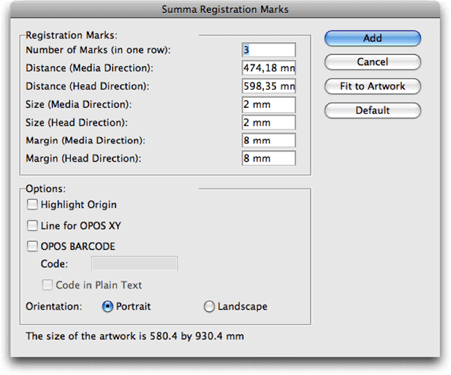 |
Plug-Ins for Adobe Illustrator and Corel CorelDRAW MacSign includes a collection of plug-ins for Adobe Illustrator and Corel CorelDRAW that allow you to transfer directly your design into MacSign, export your design in MacSign file format, and add Summa OPOS registration marks and Mutoh EPOS reference frame to your design. |
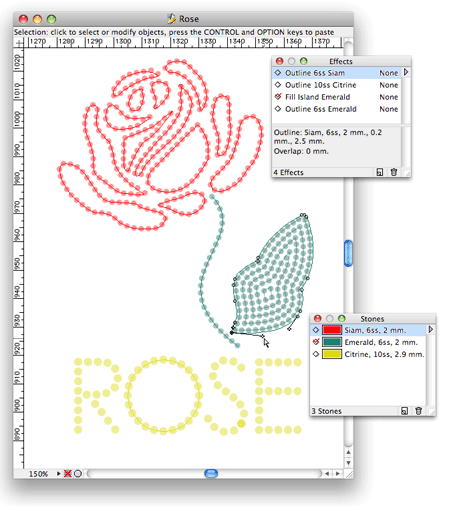 |
Stone Effects MacSign includes powerful designs tools to create stone heat transfer stencils with a cutting plotter. You can create custom high-quality stone designs quickly and turn them in heat transfer stencils in few minutes. Use the Effect menu and the Effects palette to create and apply stone effects for new and existing elements. The Effetcs palette allows you to edit, delete, and duplicate effects just with a mouse click. The parameters in the Effect dialog box allow you to arrange stones along the path or fill paths with stones using hatch, island and pixel fills. Precisely control stone diameter and spreading, spacing, overlap, corners, pitch, and hatch angle. The stone elements are vector-based: if you modify the shape of the element or edit the stone effect attributes, the stones will be recalculated automatically. |
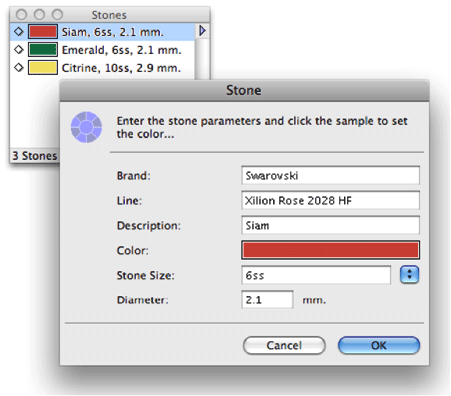 |
The Stone Tool The Stone tool allows you to place stones manually: simply just click to drop each stone in the desired location. You can also control the stone spreading. The Stones Palette The Stones palette lets you create the stones used in a document and you can use it to select, create, edit, and delete stones. |
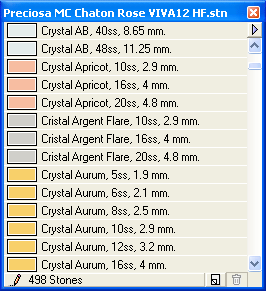 |
The Stone Libraries Palette The Stone Libraries palette lets you select stones from a range of stones libraries—including the major stones manufacturers’ catalogues. The Stone Libraries palette allows you to create new stones libraries and edit them, so you can choose from pre-set stone catalogues or your own stone collections. |
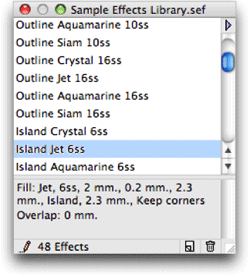 |
The Effects Libraries Palette The Effects Libraries palette lets you create collections of your own stone effects. Once you save a collection of stone effects as an Effects Library, you can use them repeatedly in your designs. |
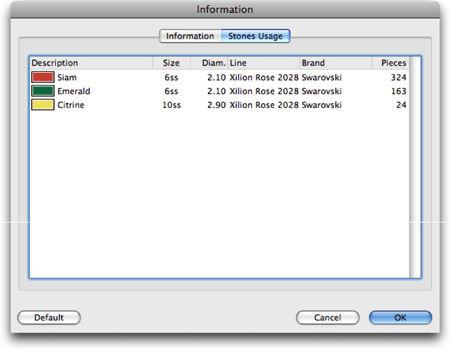 |
Stone Usage Report Automatically calculate the number of the different stones used in the document. You can export the stones usage data in a tab-delimited text format to use them in your preferred worksheet to create cost estimates. |
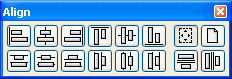 |
The Align Palette The Align palette allows to align or distribute selected elements along the axis you want. You can align to the selection or the page. |
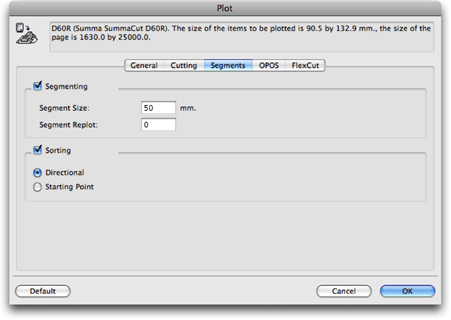 |
The Segments Panel The Segments panel in the Plot commands dialog box allows you to setup and control the segmenting and sorting features. In order to find a possible solution for tracking difficult media or cutting through media, some techniques have been implemented in MacSign and cutters. The segmenting feature divides the whole job into segments along the media direction and then cuts out segment after segment making sure it does not have to transport the media back and forth over long distances. The sorting feature performs different types of optimizations of the vectors to remove or reduce some cutting problems (this feature is implemented in some Summa cutters). |
Read Summa's OPOS Marks When Needed
The Read Marks When Needed option in the OPOS panel allows you to sense OPOS marks not all at once but only when needed. When this option is turned on, the cutter, instead of search for all marks when starting the job, senses only the first two marks (on each side) and the next marks will be sensed when cutting data are received that go behind the latest sensed marks in media direction. This allows to sense very long OPOS jobs per segment.
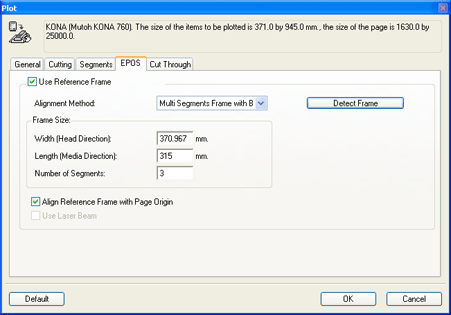 |
Support of Mutoh's EPOS Optical Sensor The EPOS panel in the Plot commands dialog box allows you to setup and control the registration box reading unit on Mutoh cutters directly from MacSign for added user-friendly operation. The registration box is the alignment box that is used to align the cutting positions on a cutter with the printed output of a printer. |
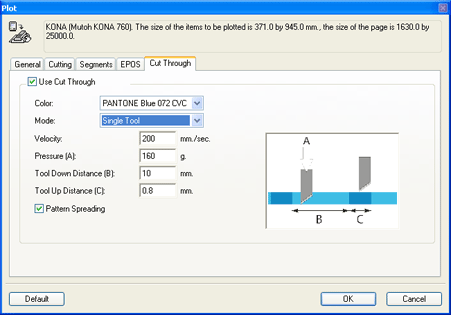 |
Support of Mutoh's Cut Through Technology The Cut Through panel in the Plot commands dialog box allows you to setup and control the media cutting through process on a Mutoh cutter directly from MacSign for added user-friendly operation. In order to cut media completely through on a drum-plotter, Mutoh has implemented the Cut Through technology: an interrupted cutting line ensures the media's stability by means of small media "bridges". When the job is finished the cut images can then simply be torn out. |
Support of Mutoh's Bar Code Workflow
Automatic job recognition using a bar code so different "contour cutting" jobs can be processed after each other without operator intervention.
RIPs Integration
MacSign supports integration with RIPs to easily create contour cutting workflows that allow you to print your design on a printer using the RIP and then cut the contour on a cutter using MacSign.
 WHAT'S NEW