



|
||||
|
|
|
|
|

|
||||||||||||||||||







|
||||||||||||||||||
|
||||||||||||||||||
|
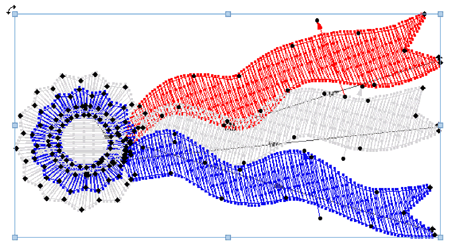 |
Bounding Box Editing When you select one or more elements with the Selection or the Lasso Selection tool, a bounding box displays around them. The bounding box lets you scale, rotate, reflect, and shear elements easily by dragging a handle. |
|
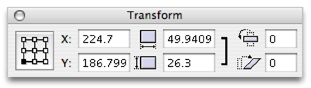
The Transform Palette The new Transform palette displays information about the location and size of current selection. By typing new values, you can move, scale, rotate, reflect and shear the selected elements, change the transformation origin point and keep the elements' proportions. |
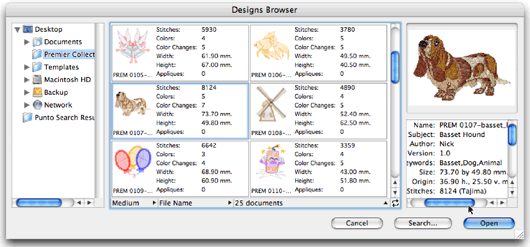 |
The Designs Browser The new Design Browser window makes it easy to view, search, select, and open multiple designs. The Design Browser window shows multiple designs thumbnails together with important information such as size, number of colors and stitches, and more. You can display a three-dimensional, photorealistic preview and comprehensive design information. You can search for designs by keywords, size, number of stitches, and other criteria. |
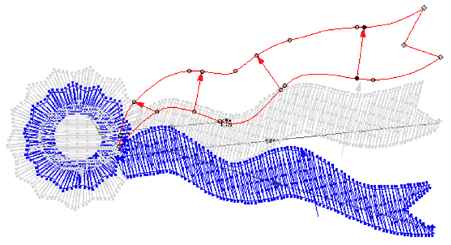 |
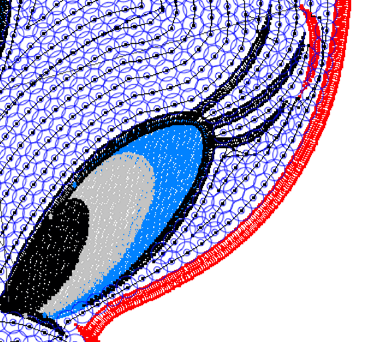
The Smart Direction Line and Smart Border Line Tools These new tools let you draw a direction or border line and hook it to a path or section simultaneously. Moreover, these tools provide visual feedbacks that help you to create, place, and align direction and border lines over paths and sections. This will speed up the digitizing process. |
 |
Support of Embroidery Machines Equipped with a Sequin Device You can either place sequins manually by using the Sequin tool or allow the application to automatically place sequins for you along a path by using the Sequin effect. You can automatically apply different tacking stitches in order to hold the sequin on the fabric that you can choose among built-in tacking stitches or your own tacking stitches created from scratch to match your needs. The Sequin effect allows you to set the sequins spacing, the tacking stitches style, the size of the tacking stitches, force the feeding direction, and so on. You can specify the settings (sequin shape, size, color and name) of the sequin device installed on a particular color/needle using the Colors palette. The new Needles & Sequins section of the worksheet reports the number of sequins used in the design. Sequin capability is currently only supported in Tajima and ZSK embroidery machine format. |
In Punto you can use the new Borer On and Borer Off special functions to activate and deactivate the boring capability. With the boring capability activated, any needle penetration is a stab. The Machine pane of the Information dialog box includes info on how to interpret boring commands. Boring is currently only supported in Tajima, ZSK, and Barudan machine formats.
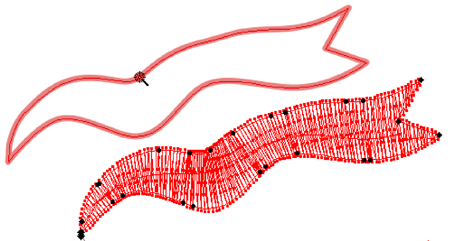 |
The Quick Punch Tool The Quick Punch tool quickly digitizes paths applying the embroidery effect currently selected in the Effects palette. As you click, the path is "cut" using border lines, sewing order is detected, direction lines are added to define stitches angle, and the embroidery effect selected in the Effects palette is applied. This tool speeds up the digitizing process of simple shapes.
|
Font Conversion
The Convert Font command lets you convert any OpenType, TrueType or PostScript Type 1 font installed on your system to an embroidery font.
New Font Format
Punto 7 introduces a new, powerful font format. The new format is also cross-platform so you can move font documents back and forth between the Mac OS and Windows platforms by just moving documents back and forth physically. Punto 7 supports both the new format and the old one (starting with Punto 4).
Smart Highlighting
Smart Highlighting is a special feature that help you to select and edit elements. When Smart Highlighting is turned on and you move the cursor over your design, the cursor looks for elements to highlight the element below the pointer and to show information (type, effect, color, number of stitches,...) about it in a new panel of the Information palette. The appearance of Smart Highlighting is determined by settings in the Smart Highlighting panel of the new Preferences dialog box.
Embroidey Machine Settings
The new Machine pane in the Information dialog box allows you to select the embroidery machine settings: the format of the control commands understood by the embroidery machine, how to interpret color changes and trims, the maximum frame movement, an so on. This allows to accurately display in the worksheet, Information dialog box, etc., the total number of stitches for each design according to its machine settings.
Smart Special Functions
The new Smart Special Functions lets you select a special function in the document window and move it. Moreover, while you drag the special function, visual feedbacks help you to automatically place the special function at the end point of the desired section.
|
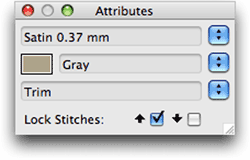
The Attributes Palette The new Attributes palette displays the attributes (effect, color, special functions, lock stitches) associated with selected element. Moreover, you can change the attributes of the selected element by using the controls of the Attributes palette. |
 |
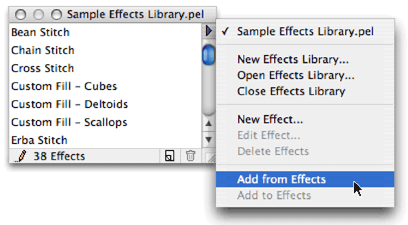 |
The Effects Libraries Palette The new Effects Libraries palette lets you create collections of your own embroidery effects, e.g., for a specific thread and fabric. Once you save a collection of embroidery effects as an Effects Library, you can use them repeatedly in your designs.
|
Enhanced Colors Palette
The Reorder by Sequence command in the Colors palette's pop-up menu allows to reorder the Colors palette's items to match the sequence of colors used in the design's execution: the first color displayed in the Colors palette, i.e., the first needle on the embroidery machine, is the first one used in the design, and so on. You can move a color in the Color palette by dragging it in the desired position, in this way you can easily assign a color to a specific needle. This is useful to match a particular needles/colors setups on embroidery machines.
Different Thread Types in the Same Design
Now you can have different thread types in the same design. In the Colors and Threads palettes you can select the appropriate thread type. The thread types set in the colors used in the design are shown in the worksheet.
Enhanced Threads Palette
Each thread contains the thread line and it is possible to selectively import threads from tab-delimited text files and existing Punto threads libraries: this allows to easily create own threads color charts form different sources and manufacturers. The Find command has been re-written with more options. A palette options command allows to set how the Threads palette works.
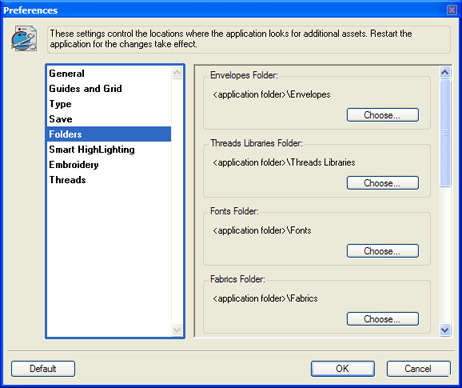 |
New Preferences The new Preferences dialog box has been organized in multiple panes and it lets you specify more options regarding how you want Punto to work, including those for tools, guides, units, and display. |
Auto Save
Punto allows you to periodically save open documents. You can also specify the time period between saves.
Quick Look Support
Quick Look is a technology introduced in Mac OS X version 10.5 that enables client applications, such as Open dialogs and Finder, to display thumbnail images and full-size previews of documents. Previous custom preview support is no longer available in Mac OS X version 10.5. Punto includes a Quick Look plug-in that converts a Punto document from its native format into a format that Quick Look can display to users.
Automatic Underlay in Lite and Easy Levels
Automatic centerline, Edge, Zig Zag, and Fill underlays have been added in the Lite and Easy levels.
Fixed Pull Compensation in Lite and Easy Levels
The automatic fixed pull compensation for fill and satin stitches has been added in the Lite and Easy levels.
 WHAT'S NEW